26 Sep 2010
The most awesome free developer event on the west coast is back again, and it looks like it will be even more awesome this year. The 5th edition of Silicon Valley Code Camp is taking place Saturday and Sunday Oct 9th and 10th, 2010, at Foothill College, in Los Altos Hill. There are 194 sessions, already over 1,600 registrations, with topics for all tastes - .NET, Java, Cloud Computing, Python, Javascript, mobile development, and more.
The 2010 schedule is up here. I will be giving 2 talks, on Test-Driven Development, and on Mocking. Both are on Sunday – hope to see you there!
More...
19 Sep 2010

I have been involved recently with a project for a foreign company with offices in the US; the US team receives lots of documents in a foreign language which require translation, and they were interested in a way to speed up the process, using Bing Translator and Google Translate.
Why not just pick one? Both are awesome, but if you have tried them, you know the results can be somewhat random. Having the option to compare their respective results is a good way to make sure you end up with something which makes sense. This sounded like a perfect case for the Strategy Pattern. I started by defining a common interface:
public interface ITranslator
{
  string TranslateToHindi(string original);
  string TranslateToEnglish(string original);
}
… and implemented two versions, the BingTranslator and the GoogleTranslator, using the API for each of these services. So far so good, but when I started working on the user interface, I ran into a small problem. My user interface has just 2 buttons, “translate to English”, and “Translate to Hindi”, and Ideally, I would have liked to just pass the specific language pair to use, along these lines:
private void toEnglishButton_Click(object sender, RibbonControlEventArgs e)
{
  ITranslator translator = this.GetTranslator();
  this.TranslateStuff(translator, stuffToTranslate, “en”, “hi”);
}
07 Sep 2010
In my previous posts, I explored how to identify text in a PowerPoint slide and use the Google .NET API to translate it; let’s put it all together in a simple VSTO add-in for PowerPoint 2007.
The translation functionality is displayed in a Custom Task Pane, where you can pick the language of origin, and the language to translate to. I used the same general design I presented in my Excel add-in tutorial, using WPF controls in the task pane with the MVVM pattern, leveraging the small yet very useful MVVM foundation framework. When running, this is how the add-in looks like:
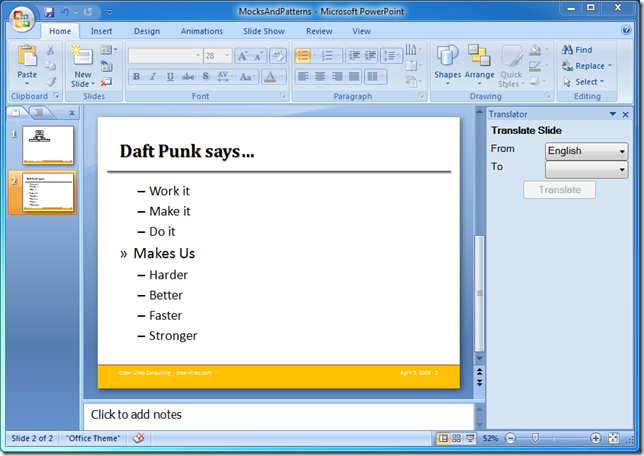
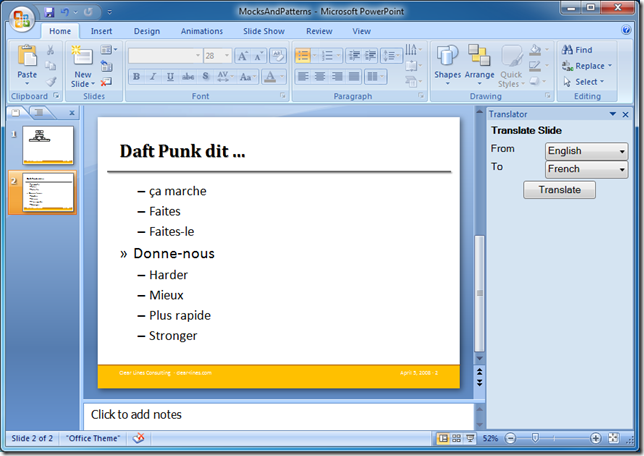
I added only 3 languages in there, but it is fairly easy to modify the code and get it to work with any language pair supported by Google translate.
Download code sample
More...
02 Sep 2010
The beauty of working with a framework like .NET is that when you have a problem, chances are, someone else did before you, and might have even resolved it for you. In our last post, I explained how to find text in a PowerPoint slide using C#.. My goal was to translate it using the Google Translate service, and I intended to write my own code to call the web service and retrieve the translation. Turns out, there is a .NET API for Google Translate, ready to use, which does it for you already (of course, I found that out already after rolling out my own code, which wasn’t nearly as good).
Building up where we left off, I quickly wrote this class, which will translate the slide currently in view; I think the code is self-explanatory: get the slide, create a Google translator, pass it the language of origin and of destination, and translate every chunk of text you find! The only thing I needed to do was to download GoogleTranslateAPI_0.3.1, add the dll to the project as a reference.
namespace ClearLines.PowerPointTranslator
{
   using Google.API.Translate;
   using PowerPoint = Microsoft.Office.Interop.PowerPoint;

   public class SlideTranslator
   {
      public static void TranslateSlide(Language from, Language to)
      {
         var googleTranslator = new TranslateClient("http://www.clear-lines.com");

         var powerpoint = Globals.ThisAddIn.Application;
         var slide = (PowerPoint.Slide)powerpoint.ActiveWindow.View.Slide;

         foreach (PowerPoint.Shape shape in slide.Shapes)
         {
            if (shape.HasTextFrame == Microsoft.Office.Core.MsoTriState.msoTrue)
            {
               var textFrame = shape.TextFrame;
               var textRange = textFrame.TextRange;
               TranslateTextRange(textRange, googleTranslator, from, to);
            }
         }
      }

      public static void TranslateTextRange(
         PowerPoint.TextRange textRange,
         TranslateClient translator,
         Language from,
         Language to)
      {
         var paragraphs = textRange.Paragraphs(-1, -1);
         foreach (PowerPoint.TextRange paragraph in paragraphs)
         {
            var text = paragraph.Text;
            text = text.Replace("\r", "");
            paragraph.Text = translator.Translate(text, from, to);
         }
      }
   }
}
Later this week, after I do some code scrubbing, I’ll post the entire VSTO solution. Until then, have fun – it’s almost the week-end!
More...
21 Aug 2010
In a previous post, we saw how to programmatically search for text in a PowerPoint slide, by iterating over the Shapes contained in a slide, finding the ones that have a TextFrame, and accessing their TextRange property. TextRange exposes a Text property, which “represents the text contained in the specified object”.
Our goal is to translate a slide from a language to another, which means translating every chunk of text we find. However, the Text property contains a bit more than just text. Suppose you were working with a slide like the one below, which contains multiple bullet points, with various indentations:
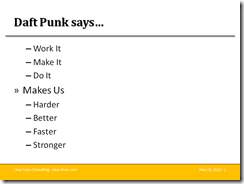
If you inspect the Text for the content area, you’ll see that it looks like this:
Work It\rMake It\rDo It\rMakes Us\rHarder\rBetter\rFaster\rStronger
At the end of each bullet point, we have a \r, which indicates a line break. If we want to maintain the formatting of our slide when we translate it, we’ll have to deal with it.
We’ll worry about the actual translation later – for the moment we will use a fake method, which will show us what chunk of text has been translated:
public static string Translate(string text)
{
   return "Translated [" + text + "]";
}
A crude approach
A first approach would be to simply take the entire Text we find in the TextRange, manually separate it into chunks by splitting it around the carriage return character, translating the chunk, and re-composing the text, re-inserting the carriage returns.
Starting where we left off last time, let’s loop over the Shapes in the slide:
private void TranslateSlide()
{
   var powerpoint = Globals.ThisAddIn.Application;
   var presentation = powerpoint.ActivePresentation;
   var slide = (PowerPoint.Slide)powerpoint.ActiveWindow.View.Slide;
   foreach (PowerPoint.Shape shape in slide.Shapes)
   {
      if (shape.HasTextFrame == Microsoft.Office.Core.MsoTriState.msoTrue)
      {
         var textFrame = shape.TextFrame;
         var textRange = textFrame.TextRange;
         var text = textRange.Text;
         textRange.Text = CrudeApproach(text);
      }
   }
}