26 Apr 2010
Excel VSTO Add-In Series
Today we will write code that reads the contents (values & formulas) of the two selected worksheets, generates a list of their differences, and feeds it to the view that displays the comparison. The code isn’t particularly complicated, and uses mostly ideas which have been seen in the previous posts, so rather than break this into multiple small posts, I chose to bite the bullet and get done with a large chunk, all at once. I hope you survive it and bear with me – promise, we are almost there!
In the previous installment, I created a stub to provide a “canned” list of differences to the ComparisonViewModel, so that we would have something to display. It’s time to replace that stub, and generate a real comparison between 2 worksheets. We could add the required code inside the existing classes; however, we will likely have a good amount of logic, so to avoid clutter, and to keep our design tight, we will extract that responsibility into its own class, the WorksheetsComparer.
First, let’s create a stub for the class, in the Comparison folder; its key method will be FindDifferences, and we will temporarily move the “fake” comparison that was in the ComparisonViewModel into that method:
public class WorksheetsComparer
{
   public static List<Difference> FindDifferences(Excel.Worksheet firstSheet, Excel.Worksheet secondSheet)
   {
      // Temporary code
      var difference1 = new Difference() { Row = 3, Column = 3 };
      var difference2 = new Difference() { Row = 3, Column = 5 };
      var difference3 = new Difference() { Row = 5, Column = 8 };

      var differences = new List<Difference>();
      differences.Add(difference1);
      differences.Add(difference2);
      differences.Add(difference3);

      return differences;
   }
}
Now we need to hook it up to the add-in. We will add a button to the AnakinView, which, when clicked, will call WorksheetsComparer.FindDifferences, and pass the result to the ComparisonViewModel. Let’s first plug a button in the AnakinView, and bind it to a Command on the ViewModel, GenerateComparison:
<StackPanel Margin="5">
  <Comparison:ComparisonView x:Name="ComparisonView" />
  <Button Command="{Binding GenerateComparison}"
          Content="Compare" Width="75" Height="25" Margin="5"/>
Following the same approach as in the previous post, we implement the command in the View Model (only added code is displayed):
public class AnakinViewModel
{
   private ICommand generateComparison;

   public ICommand GenerateComparison
   {
      get
      {
         if (this.generateComparison == null)
         {
            this.generateComparison = new RelayCommand(GenerateComparisonExecute);
         }
         return this.generateComparison;
      }
   }

   private void GenerateComparisonExecute(object target)
   {
      var differences = WorksheetsComparer.FindDifferences(null, null);
      this.comparisonViewModel.SetDifferences(differences);
   }
}
23 Apr 2010

I gave a lightning talk on Pex at the San Francisco .Net user group this Wednesday, and figured I might as well post the slide deck. Pex is a fascinating free add-in to Visual Studio, totally worth looking into: unleash Pex on a method, and it will identify interesting input values for you.
Download the slide deck here
More...
16 Apr 2010
I am pretty excited that the new Silverlight Toolkit now supports Stacked Series. If you develop business applications, at some point or another, you will have to produce charts. A while back I looked into the WPF / Silverlight toolkit, which offers charting capabilities, and I really liked it, because its design supports mvvm-style databinding pretty well. There was one major drawback, though: it didn’t include any stacked series. The point of reference for most business users is Excel charts, and this left a large chunk of the standard charts out. Problem solved with the last release: the stacked histogram and some of his friends are in! The Excel “Outdoors Bar” type is still not included, but I don’t think anyone will complain. I can’t wait to play with this release.
More...
14 Apr 2010
Excel VSTO Add-In Series
In the second part of this series, we will generate a comparison between two open spreadsheets, and create a user interface to navigate between the differences, and reconcile them if need be.
For today, let’s assume that the add-in has already figured out what the differences are, and build first a user interface that allows the user to navigate to the cells that have differences. In later posts, we will focus on actually generating these differences.
To achieve this, I will leverage the Goto method of Excel. Application.Goto(object reference, object scroll) will navigate to the range defined by reference. If scroll is set to true, it will force the window to scroll so that the range is the upper-left corner, otherwise it will scroll only if necessary.
This is a good starting point for design. A spreadsheet comparison will be a collection of differences, and each difference should map to a cell. One approach is to store the row and column of each difference, so that from a Difference object, we can retrieve the corresponding range, and go to it:
private void NavigateToDifference(Difference difference)
{
   var row = difference.Row;
   var column = difference.Column;
   var activeSheet = (Excel.Worksheet)this.excel.ActiveSheet;
   var differenceLocation = activeSheet.Cells[row, column];
   this.excel.Goto(differenceLocation, Type.Missing);
}
09 Apr 2010
Learning new things is difficult, but the hardest thing to do is to learn new ways to do things you have always done a certain way. Case in point: the Strategy Pattern. It is the first design pattern I was introduced to, and back then, it was an eureka moment for me.
I learnt it the “classic” way: when a class is performing an operation, but could go about it a few different ways, rather than building a switch statement in the class to handle each particular case, extract an interface for the operation, and create interchangeable concrete implementations, which can be plugged in the “Context” class at run time.
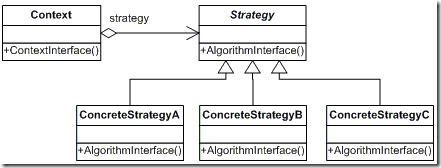
Source: http://www.dofactory.com/Patterns/Patterns.aspx
For some obscure reason, I went to the Wikipedia page dedicated to the Strategy pattern recently, and was very surprised to see that the first C# example proposed didn’t use polymorphism at all.
The second example is the old-school interface/concrete implementation version, but the first illustration uses the Func<> delegate. Here is a quick example I wrote using that approach. Rather than an interface, the Strategy can be any function that takes in a string as first argument, and returns a string as a result.
public class Context
{
   public Func<string, string> Strategy
   {
      get;
      set;
   }

   public string SayHello(string name)
   {
      return this.Strategy(name);
   }
}