07 Sep 2009
It’s that time of the year again: Silicon Valley Code Camp is coming up on October 3rd and 4th, at Foothill College. If you live in the Bay Area and like to talk code, this is an event you don’t want to miss. The previous editions rocked, and this year looks like it’s going to rock even harder, with well over 100 sessions and close to 1,000 registered! Oh, and did I mention it’s free? This year again, I will give an introduction to Test-Driven Development for .NET developers. It’s a topic which is dear to my heart; in his book on TDD, Kent Beck says that it “is a way of managing fear during programming”, and I have to say that my life as a developer got significantly more peaceful after reading it. I can’t guarantee that you will feel the same, but I’ll do my best to share the goods! The session is targeted for beginners. My goal is to get you quick-started so that you are ready to use it when you leave the room. I will write some code live, to show the methodology in action, using only tools you can get for free. This year, I think I will focus mostly on NUnit and keep it to a minimum on the tools provided in Visual Studio, unless there is strong popular demand; hopefully this will give me enough time to squeeze in a few minutes on mocks. I also just ordered Roy Osherove’s “The Art of Unit Testing, which looks very promising, and may push me to modify my plan a bit. I hope to see you there – and if you have questions or suggestions, let me know in the comments section!
More...
03 Sep 2009
In my last post, I illustrated how to quickly to pick the best value from a selection to get the optimal result, by using Excel Data Tables. This time, we will see how to pick the best possible pair of values.
We are trying to figure out which 2 bridges we should build, in order to minimize the overall travel time for the inhabitants of the island.

I worked out the math for one bridge last time. We will start we a similar setup, but adjust our spreadsheet so that for each islander, we compute the travelling distance for 2 bridges, and select the shortest route.
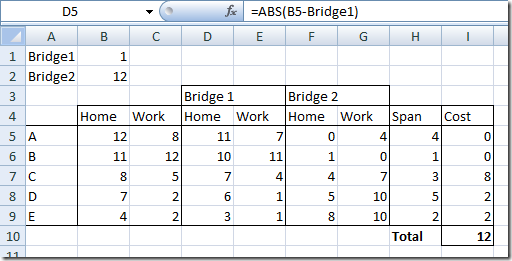
The ranges B1 and B2 are named Bridge1 and Bridge2. Column I now contains the formula computing the shortest route for each islander. For row 5 for instance, the formula is
=MIN(D5+E5-H5,F5+G5-H5)
Cell I10 is the total of the vertical distances travelled by each individual.
We can select from 4 bridge locations: 2, 4, 7 and 12. What we need is to find out which 2 numbers give us the lowest total travel. Let’s build our data table, this time using 2 bridge positions.
More...
28 Aug 2009
In the current issue of OR/MS Today, I came across this nice optimization puzzle, “Bridges to Somewhere. There are these two islands. Five people A, B, C, D and F live on the first island, and need to commute to work to the second island. Individual A lives in the spot marked A, and needs to go to spot A on the second island – and so on for the 4 others. People can travel only vertically and horizontally (no diagonals), and will always take the shortest path available.

There is currently no bridge between the islands, but a budget for 2 bridges has been approved (the island just received a stimulus package). There are 4 bridge proposals to chose from (One, Two, Three and Four on the map). Which 2 bridges should be built to minimize the travel distance of the population?
Before trying to figure out which 2 bridges are best, I thought it would be interesting to investigate a simpler problem: if you could build one bridge anywhere, where should you build it?
There are a number of ways you could resolve this using Excel; I will illustrate how to find the best solution, using Excel Data Tables.
More...
20 Aug 2009
I wrote a post a few days ago describing how to generate a Line – Column chart in Excel through C#. And then a few things happened. Jon Peltier proposed a much nicer approach, I realized that my code worked for Excel 2003 but not Excel 2007, and someone asked for my code, “Jon-Peltier style”. So here we go: assuming your chart has more than one series, and you want the second series to be formatted as a line, all the rest as columns, you would do something like this:
// Create your chart object first
// formatted as column
Chart chart = ExcelCharts.AddChart(targetWorkbook, “my chart”, “the chart title”, XlChartType.xlColumnClustered, dataRange, XlRowCol.xlRows);
// Select the second series and make it a line
Series series = (Series)chart.SeriesCollection(2);
series.ChartType = XlChartType.xlLine;
Here is a simplified version of my AddChart method, which creates the base chart. Nothing fancy, but gets the job done.
public static Excel.Chart AddChart(Workbook workbook, string chartSheetName, string title, XlChartType chartType, Range dataRange, XlRowCol byRowOrCol)
{
    Excel.Chart chart;
    chart = (Excel.Chart)workbook.Charts.Add(Type.Missing, Type.Missing, Type.Missing, Type.Missing);
    chart.ChartType = chartType;
    chart.Location(XlChartLocation.xlLocationAsNewSheet, chartSheetName);
    chart.SetSourceData(dataRange, byRowOrCol);
    chart.HasTitle = true;
    chart.ChartTitle.Text = title;
    return chart;
}
As an aside, I was not happy with myself when I realized the code didn’t run on Excel 2007. I tend to write Excel-related code against Excel 2003 first, assuming it is the smallest common denominator and will likely work with Excel 2007 – but this is a perfect illustration that while it will typically be correct, it will sometimes fail, sometimes in very unexpected and trivial places, like in this example. Moral of the story: as Lenin allegedly said, “Trust is good, control is better”…
More...
17 Aug 2009
I was digging through older Excel projects recently, and realized that while all my recent projects haven’t become smaller in terms of data (if anything, they have become more data-intensive), they all had very small Excel files. Which got me wondering – did my workbooks really shrink, and why? One of the characteristics of my recent projects has been that I have progressively removed most of the calculations from the spreadsheets. Excel is used to store inputs and to display outputs, and computations happen outside, using either VSTO add-ins, or Interop (I realize it is a somewhat devious use of Excel, but I have my reasons for doing this). As a result, the Excel files contain raw data (input data, or output results), some formatting, and no formulas. This made me curious: does using formulas affect the file size significantly? Here are the 2 key conclusions from my quick & dirty experiment:
- Each formula costs about the double of a straight, static input.
- Besides that, the size of a file grows linearly with the number of cells used.
More...