27 Oct 2010
When it comes to design discussions, I have been described as “opinionated” (at times, harsher words like pig-headed or argumentative – or way worse - have been substituted). It isn’t that I think I am usually right, and I am normally a pretty gentle person, but I firmly believe in Socratic method for identifying well-formulated, clear and transparent solutions.
Two ingredients are required to make it work: an unambiguous statement, and a contradictor, who will poke at the statement until it either crumbles, or gets refined until it is self-evident, with clearly identified qualities and limitations. So I like to take somewhat extreme positions in design discussions, either in my proposals, or in my criticism. It has nothing to do with how much I believe them to be right, and everything to do with understanding what is at stake in the discussion and where the tensions are.
Unfortunately, it has also gotten me into trouble at times, because, well, discussions can get heated. I will honestly try my best to find issues with any design I am presented with, and push for clarification – just like I really appreciate when people do the same with mine. It’s a tricky exercise, because while these are ideas that are under fire, it’s often difficult not to take the criticism personally. I hope to get better one day at sensing when that emotional line is being crossed, so that an honest and open discussion can be maintained.
Anyways, the reason for this rant is that I am finally reading The Structure of Scientific Revolutions by Thomas S. Kuhn - and I am enjoying it tremendously. The book is mostly concerned with science, but some of the ideas resonate deeply with me, and in my opinion extend beyond science. The two following gems are lifted from the book:
Truth emerges more readily from error than from confusion.
Sir Francis Bacon, quoted in Kuhn
… Novelty ordinarily emerges only for the man who, knowing with precision what he should expect, is able to recognize that something has gone wrong. Anomaly appears only against the background provided by the paradigm. The more precise and far-reaching that paradigm is, the more sensitive an indicator it provides of anomaly […] By ensuring that the paradigm will not be too easily surrendered, resistance guarantees that scientists will not be lightly distracted…
Thomas S. Kuhn
I could not agree more.
More...
17 Oct 2010
The current project I am working on requires writing large amount of data to Excel worksheets. In this type of situation, I create an array with all the data I want to write, and set the value of the entire target range at once. I know from experience that this method is much faster than writing cells one by one, but I was curious about how much faster, so I wrote a little test, writing larger and larger chunks of data and measuring the speed of both methods:
private static void WriteArray(int rows, int columns, Worksheet worksheet)
{
   var data = new object[rows, columns];
   for (var row = 1; row <= rows; row++)
   {
      for (var column = 1; column <= columns; column++)
      {
         data[row - 1, column - 1] = "Test";
      }
   }

   var startCell = (Range)worksheet.Cells[1, 1];
   var endCell = (Range)worksheet.Cells[rows, columns];
   var writeRange = worksheet.Range[startCell, endCell];

   writeRange.Value2 = data;
}
private static void WriteCellByCell(int rows, int columns, Worksheet worksheet)
{
   for (var row = 1; row <= rows; row++)
   {
      for (var column = 1; column <= columns; column++)
      {
         var cell = (Range)worksheet.Cells[row, column];
         cell.Value2 = "Test";
      }
   }
}
Clearly, the array approach is the way to go, performing close to 1000 times faster per cell. It also seems to improve as size increases, but that would require a bit more careful testing.

More...
13 Oct 2010
Thanks to all of you who attended my sessions on Mocking and on TDD at Silicon Valley Code Camp 2010; I had a great time presenting, in large part because you were awesome and asked great questions!
I uploaded the slides and code for the session on Mocks here.
There wasn’t much “written” material for the TDD session, so I didn’t upload it. If someone wants it, let me know in the comments and I’ll add it, too.
Feel free to let me know if there are things I could have done better in the comments below, and don’t forget to fill in your evaluations on the Code Camp website. It’s very helpful for speakers, and… you can win an iPad, courtesy of Dice.com! On a side note, hats off to Peter Kellner and the whole crew of volunteers. Silicon Valley Code Camp gets bigger every year, and yet, the organization was flawless, and the whole event very fun. Congratulations!
More...
08 Oct 2010

I am very honored to announce that I have become a Microsoft MVP for VSTO, Visual Studio Tools for Office. I learnt the news last week, and I am still super excited. I also feel somewhat intimidated, with a new sense of responsibility towards the community. Thank you Microsoft, and thank you to the Community - I’ll try my best to keep it up, to do my part to keep the .NET community at large a lively one, and to share my experience with VSTO and the fun of .NET + Office with you guys! In other news, I apologize for the blog slowdown lately. In addition to being super-busy with a project (VSTO), I have had some problems with blog hosting, which have prevented me from writing new material. Things seem to be back on track now, I am sorry if you experienced some 404 inconvenience!
More...
28 Sep 2010
An interesting user interface issue came up in the project I am working on right now. In a nutshell, the user needs to select an item from a list of existing items. This sounds straightforward, except that the list of items has hundreds of elements. Clearly, a combo box or a list box won’t do the job – we need a convenient way to reduce the choices and help the user find what he needs.
One suggestion I liked was to use something similar to an auto-complete: type in a few letters, and show only “relevant” items to chose from:
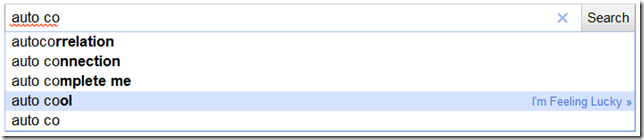
While digging into the question, I came into a .NET interface I didn’t know, ICollectionView. Essentially, it is a collection that is suitable for WPF databinding, and also has filtering capabilities. It stores a source collection, which contains all the items, but when a filter is applied to it, WPF will only “see” the filtered results.
Displaying a standard list
Let’s first create a WPF application, and warm up by adding a simple class, Product:
public class Product
{
   public string Name
   {
      get;
      set;
   }
}
Now let’s add a WPF UserControl, SearchAndSelectView.xaml. The control has a TextBlock, where we will display the name of the selected Product, a TextBox, where the user will type in the filtering text, and a ListBox, where we will display a selection of Products.
<UserControl x:Class="QuickSearchAndSelect.SearchAndSelectView"
             xmlns="http://schemas.microsoft.com/winfx/2006/xaml/presentation"
             xmlns:x="http://schemas.microsoft.com/winfx/2006/xaml"
             xmlns:mc="http://schemas.openxmlformats.org/markup-compatibility/2006"
             xmlns:d="http://schemas.microsoft.com/expression/blend/2008"
             mc:Ignorable="d">
   <StackPanel Width="150">
      <TextBlock Text="{Binding Path=SelectedProduct.Name}"/>
      <TextBox x:Name="Filter"/>
      <ListBox Height="150" x:Name="Products"
               ItemsSource="{Binding Path=Products}"
               SelectedItem="{Binding Path=SelectedProduct}">
         <ListBox.ItemTemplate>
            <DataTemplate>
               <StackPanel>
                  <TextBlock Text="{Binding Path=Name}"/>
               </StackPanel>
            </DataTemplate>
         </ListBox.ItemTemplate>
      </ListBox>
   </StackPanel>
</UserControl>